

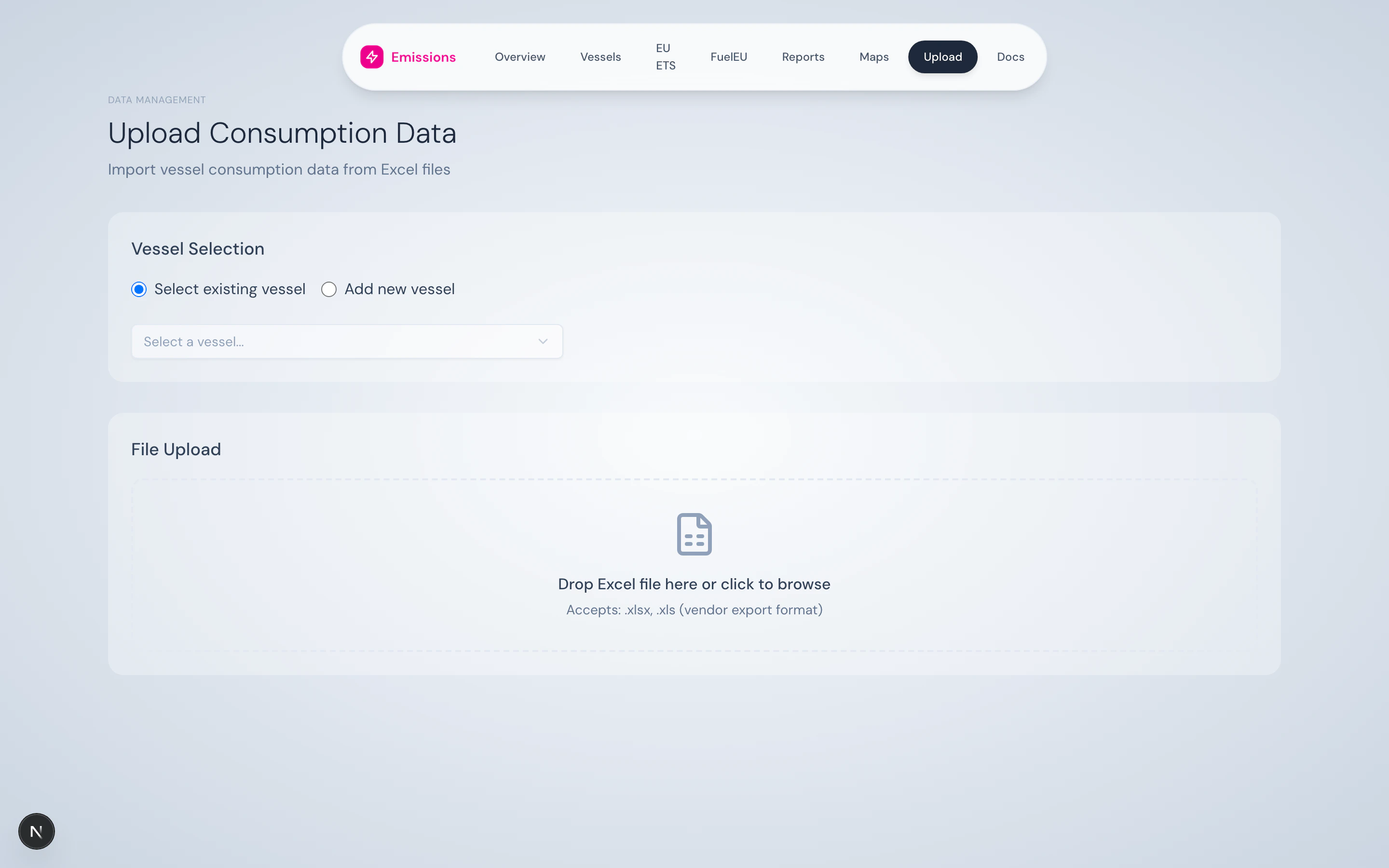
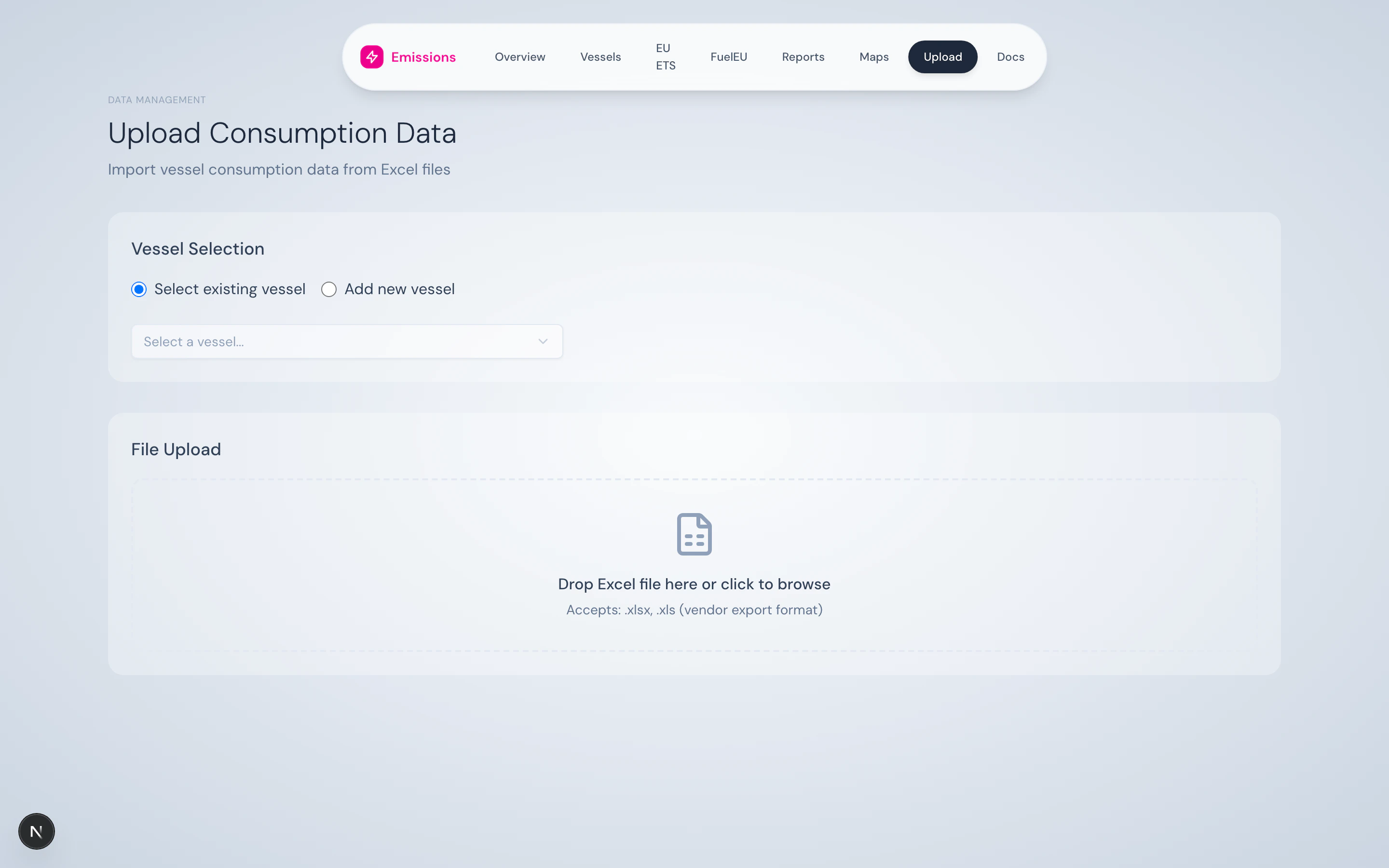
Upload page — empty state.
How it works
1
Pick a vessel
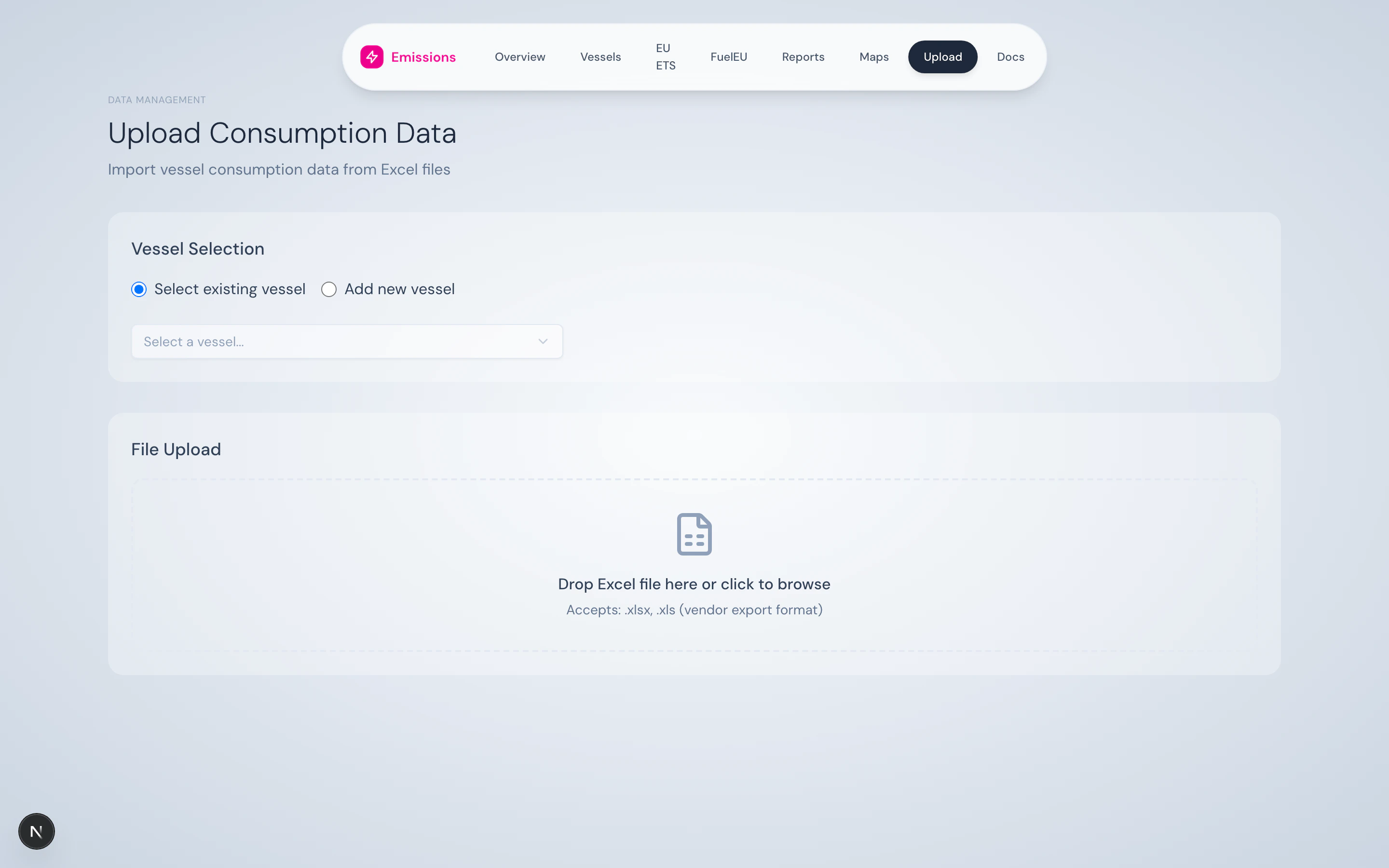
Two modes — pick an existing vessel or onboard a new one.
- Existing vessel — pick from the fleet dropdown. The dropdown shows vessel type and DWT for confirmation.
- New vessel — enter IMO (7 digits), name, DWT. The vessel is registered before the upload runs.
2
Drop the file
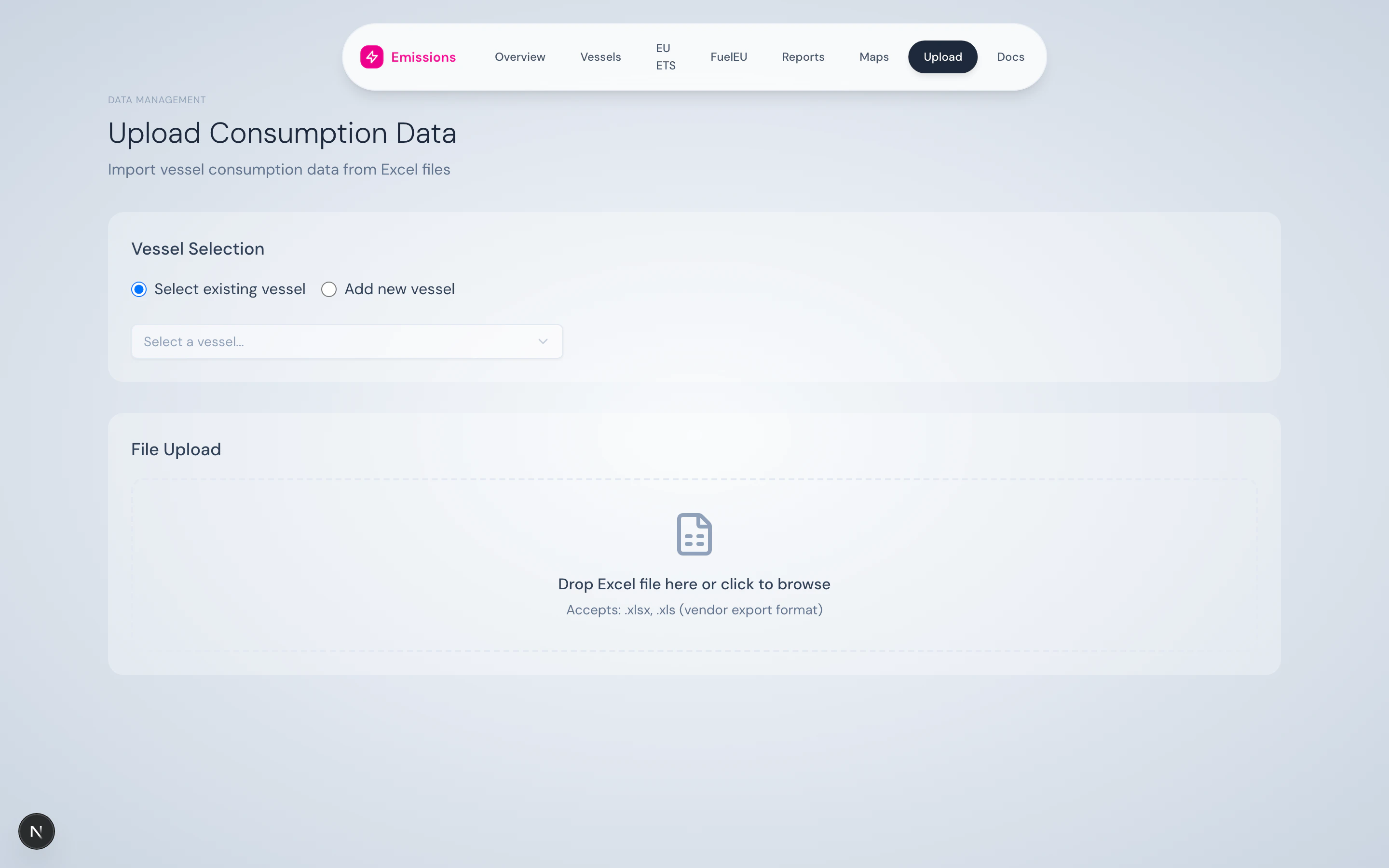
Drag-drop zone — accepts .xlsx and .xls up to 50 MB.
.xlsx or .xls file onto the dashed zone or click to open a file picker. The platform reads the filename and size; nothing is uploaded yet.3
Parse & preview
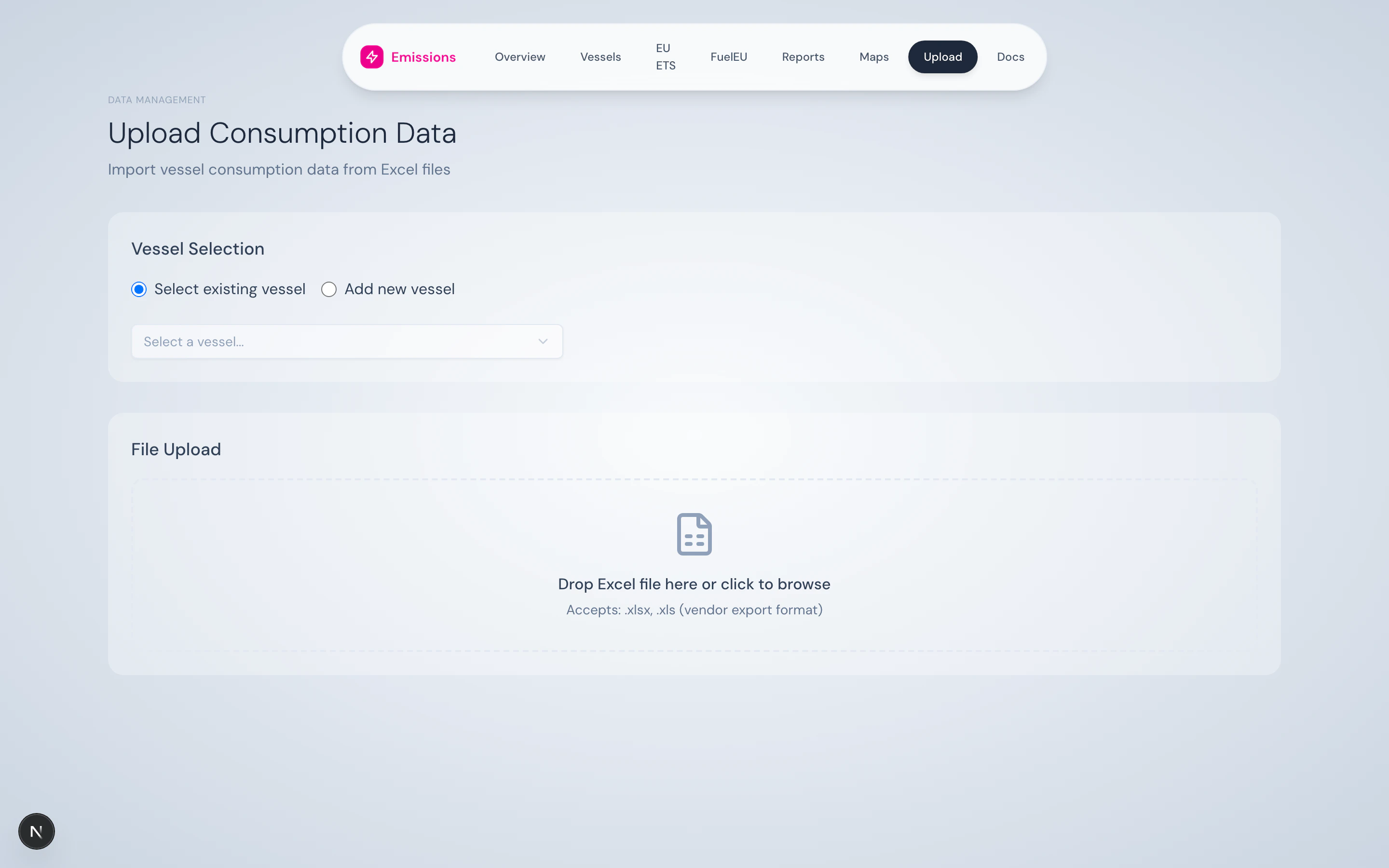
Preview shows column count, total rows, date range, valid rows.
/api/upload/consumption?action=preview and shows you:- Column count and total rows
- Date range covered (start → end)
- Valid rows ready to insert
- Duplicate detection — rows that already exist (by IMO + timestamp) and will be skipped
- The first 10 rows of data, so you can sanity-check column mapping
4
Confirm
Once the preview looks right, click Upload N Rows. The platform inserts the new rows into Postgres, leaving duplicates alone.
5
Result
Success banner with insert/skip counts and a debug panel.
Validation rules
The parser enforces:- File must be
.xlsxor.xlsand under 50 MB - A
timestampUtccolumn is required (no row without a valid timestamp is inserted) - Timestamps are parsed as UTC — Excel local-time serials are converted
- Duplicate detection key:
imo+timestampUtc
Source
UI insrc/app/upload/. Server-side parsing in src/lib/utils/excelParser.ts. API route at src/app/api/upload/consumption/route.ts.