

history.json is the local archive of every report a vessel has submitted. It’s a single JSON file on the vessel’s shared drive that the form writes to on Submit and the viewer reads from on demand. No server, no database — just a file.
This page walks through the three sides of the setup: shore-side configuration, vessel-side linking, and what happens automatically per Submit.
Part 1 — Shore: configure the form before sending
The form is sent to the vessel as a single.html file plus the History Viewer plus an empty history.json. Before sending, the office should fill in vessel identifiers and validation limits so the Master doesn’t have to retype them on every machine.
1.1 Open Settings
Click the gear icon at the bottom of the left sidebar.1.2 Local History File section
The Settings modal opens with the Local History File section at the top.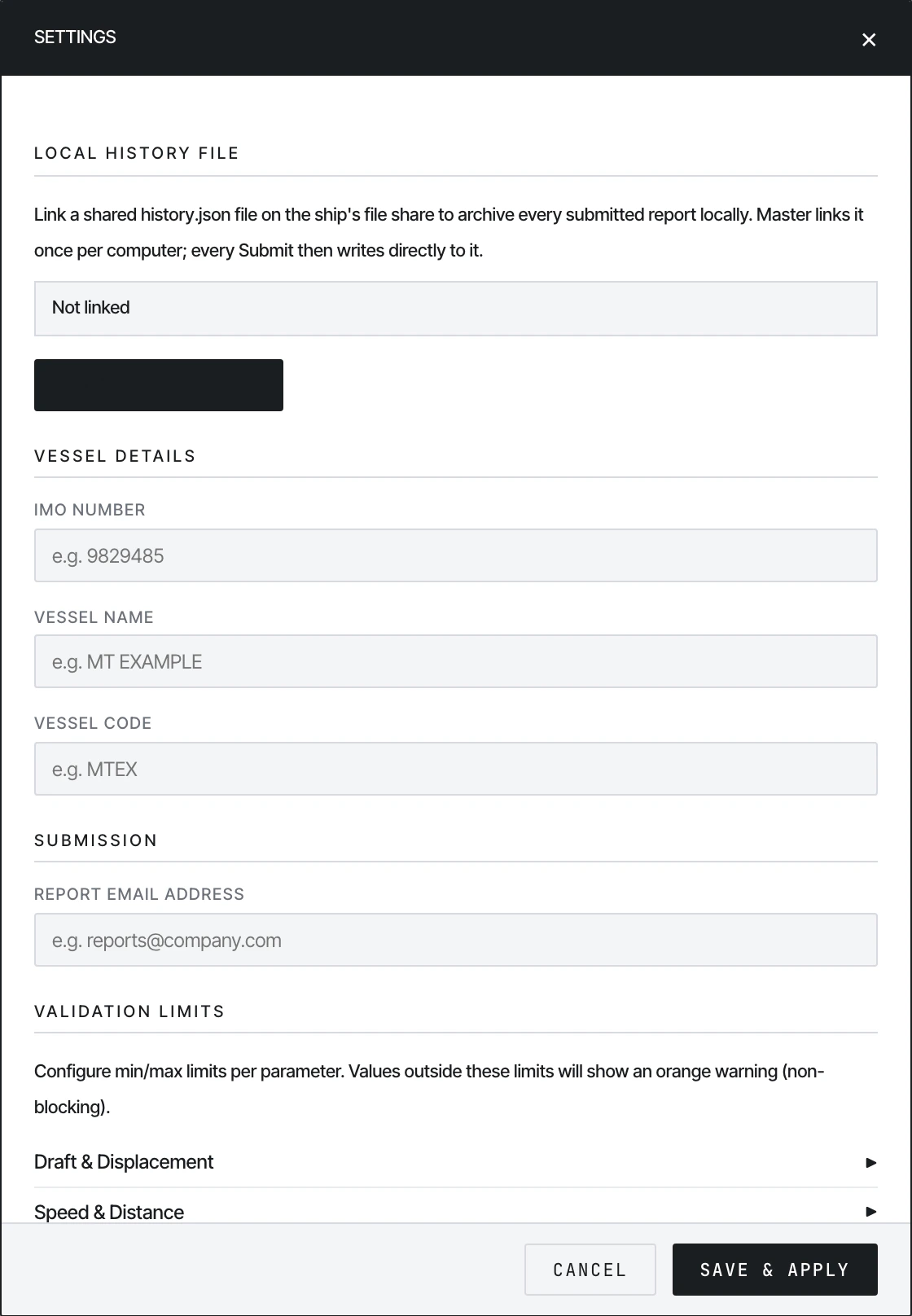
Settings — Local History File section. Status reads 'Not linked' on the office machine.
1.3 Vessel identifiers
Fill these once per vessel:1.4 Validation limits
Below the vessel section is Validation Limits, organised into collapsible groups.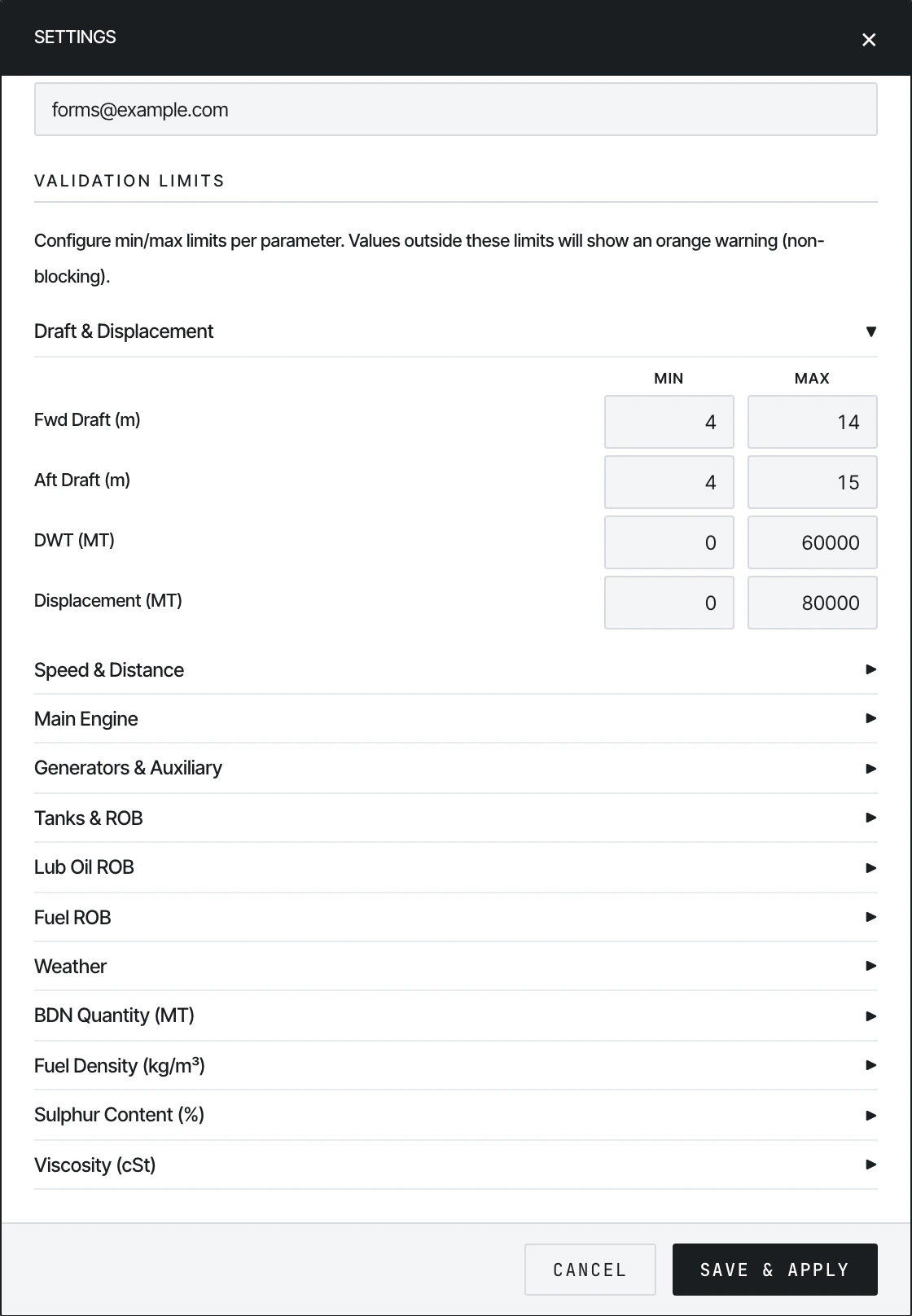
Validation Limits — per-parameter Min/Max for warnings.
1.5 Export Configured HTML
Click the green ⬇ Export Configured HTML button in the modal footer (next to Cancel and Save & Apply). This does everything in one click:- Saves the settings to the shore browser’s localStorage
- Embeds all vessel details and validation limits directly into the HTML file source
- Downloads
{VesselName}-Metaweave-Reports.html
Why not just Save & Apply? Browser localStorage is per-machine and per-file-path — it does not travel with the file. Export Configured HTML bakes the settings into the HTML itself so the vessel crew see the correct vessel name, IMO, and limits the moment they open the file, on any computer, without typing anything.
{Vessel2Name}-Metaweave-Reports.html downloads. Each exported file is fully independent.
1.6 Send the bundle to the vessel
Email or USB three files together:{VesselName}-Metaweave-Reports.html— the configured form for this vesselMetaweave-History-Viewer.html— the read-only history browser (one copy, never modified)history.json— empty ([]) on day 1, then it grows on the vessel
\\ship-nas\Performance\Metaweave\) and never rename them.
Part 2 — Vessel: one-time setup per computer
The first time the Master opens the form on a new computer, the local archive is not yet linked. He needs to point the form at the sharedhistory.json.
2.1 Open Settings → Link history.json
Click the gear icon to open Settings. The Local History File section is at the top. ClickLink history.json.
A standard browser file picker opens. Navigate to the shared drive folder and pick history.json. Chrome shows a permission prompt — click Allow, granting read+write access for this file.
The status line should now read Linked: history.json · 0 rows · last write — in black. The Link button is replaced by Re-link and Unlink buttons.
2.2 Per-session Allow dialog
Every time the form is reopened in a new browser session, Chrome asks “Allow this site to re-accesshistory.json?” before the first archive write. Click Allow once per session and every Submit thereafter writes silently.
2.3 If multiple officers share the file
Each daily report copy still gets passed serially around the ship (2/O fills nav → CE fills consumption → Master reviews → Master submits). Only the Master’s machine needshistory.json linked, because only the Master clicks Submit. The other officers’ machines don’t need to touch the history file.
Part 3 — What happens on every Submit
Once linked, the archive is automatic. On Submit, the form:- Validates and encrypts as usual (see Submitting)
- Computes a stable row ID:
{vesselImo}|{reportType}|{reportDatetimeUtc}— e.g.9840157|NOON|2026-04-13T12:00:00+00:00 - Reads the current
history.jsonarray - Upserts the row by ID:
- Insert if no existing row has the same ID
- Update (replace in-place) if an ID match is found
- Writes the new array back to disk
- Shows a toast confirming the write

Toast confirming the row was archived.
Stable IDs let you re-submit safely
The ID is deterministic — same vessel + same report type + same report timestamp = same ID. So if the Master re-files a corrected Noon for the same date/time, the existing row gets replaced inhistory.json (and replaced in PostgreSQL by the pipeline, by the same logic).
When the archive write fails
If the write fails (file moved, permission revoked, disk full), a modal appears with three buttons: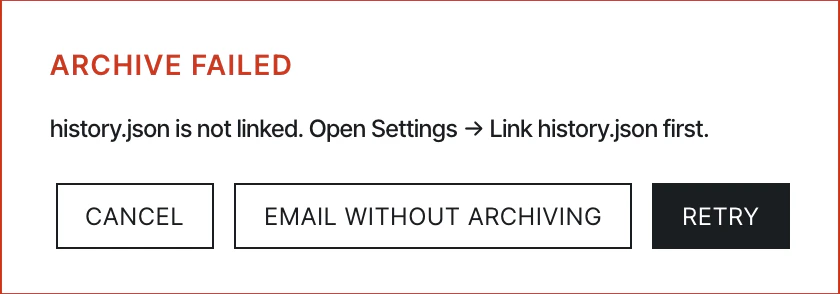
Archive failure dialog.
- Retry — re-attempts the write
- Skip — proceeds with the email submission, but the row isn’t archived locally (you’ll need to fix the link and resubmit if you want it in
history.json) - Cancel — abandons the whole submission, including the email
Part 4 — What’s in history.json
The file is a JSON array of submission records. Each record has 10 top-level fields:Part 5 — Troubleshooting
Bootstrapping history.json from existing data
If a vessel has months of historical reports already (Excel exports, legacy emails), you can build an initialhistory.json so the viewer has data on day 1.
The pipeline ships two helper scripts:
excel_to_history.py— converts a vendor Excel of voyage reports tohistory.jsongenerate_metaweave_test_history.py— generates a synthetic 12-month Aframax history for testing
See also
- Overview — what the viewer is
- Viewing past reports — day-to-day viewer usage
- Data format — the JSON schema
- Bootstrap scripts — bootstrapping
history.jsonfrom Excel or synthetic data