

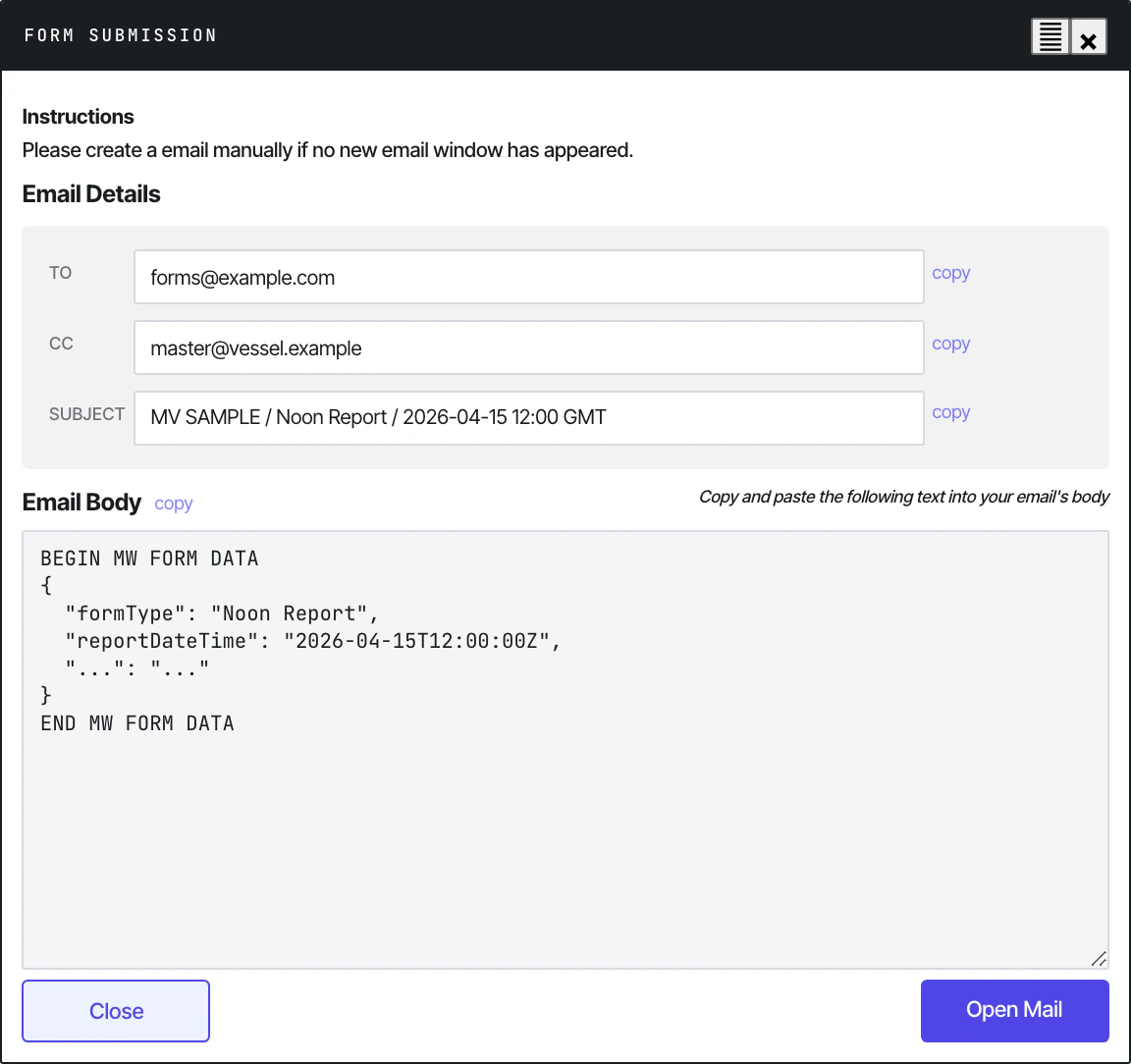
The Form Submission modal that opens after Submit.
What happens on Submit
1
Validate
The form runs every field’s validation rule. Required fields with empty values get a red inline error; values outside the configured Min/Max get an orange warning (non-blocking — see Validation). Submit is blocked if any required field is invalid.
2
Serialise
All visible inputs, selects, textareas, and table arrays (BDN rows, upcoming ports, port activities, etc.) are collected into a JSON object. Hidden identifiers — IMO, vessel name, vessel code, principal ID, client IDs, form identifier, ref ID, isBarge, client name — are pulled from hidden inputs.
3
Encrypt
The JSON is encrypted with AES-128-CBC + PKCS7 padding. The key and IV are both the same 16-byte UTF-8 string from the form configuration. The result is base64-encoded.The encrypted block is wrapped in markers:
4
Show the preview dialog
A modal opens with two views:
- Email Body — the readable preview block (vessel info, voyage info, etc.) followed by the encrypted payload. This is what you copy into your email.
- Form Submission — the encrypted block alone, for advanced cases.
mailto: link with the subject pre-filled and the body URL-encoded.5
Archive locally (if linked)
If the vessel has linked
history.json via Settings, the submission is appended to it before the modal closes. A toast confirms Archived (insert/update). N rows in history.See Setting up history.json for the archive flow.Sending the email
Once the modal is open, the standard process is:- Click Copy next to
Email Body. - Open a new email in Outlook.
- Set the format to Plain Text (Format Text → Plain Text). HTML or Rich Text formatting will corrupt the encoded block.
- Paste into the body.
- Set the email header:
- To: the fleet-specific Metaweave inbox (configured in Settings — confirm with the office on first use)
- Cc: Performance mailbox + any additional party your operator requires
- Subject: the standardised format
Vessel Name // Report Type // Date— for exampleMT ABC // Noon Report // 13 April 2026
- Make sure the body contains only the pasted block — no signature, no disclaimer, no extra text.
- Send.
Subject line format
The standardised subject the office expects:mailto: link auto-fills this. If you compose the email manually, type it exactly — the pipeline’s subject regex is strict.
Order of submission
Reports must be sent in chronological order:- Noon every day
- Arrival at EOSP
- Departure at COSP
- Bunker after each lift
- SOF after each port operation
What lands in the inbox
A typical email looks like this (truncated):Saving a copy
The form has a Save a Copy button next to Submit. It saves an HTML snapshot of the filled form to disk — useful for evidence or audit, but not a substitute for sending the email or for the local archive. The pipeline doesn’t read these saved files.See also
- Validation — what blocks Submit and what merely warns
- Setting up history.json — the local archive that fires on every Submit
- Pipeline ETL stages — what the parser does with the encrypted block