> ## Documentation Index
> Fetch the complete documentation index at: https://docs.appliedaifoundation.org/llms.txt
> Use this file to discover all available pages before exploring further.
# Setting up history.json
> Where the file comes from, who creates it, how to link it on the vessel, and what gets written on every Submit.
`history.json` is the local archive of every report a vessel has submitted. It's a single JSON file on the vessel's shared drive that **the form writes to** on Submit and **the viewer reads from** on demand. No server, no database — just a file.
This page walks through the three sides of the setup: shore-side configuration, vessel-side linking, and what happens automatically per Submit.
## Part 1 — Shore: configure the form before sending
The form is sent to the vessel as a single `.html` file plus the History Viewer plus an empty `history.json`. Before sending, the office should fill in vessel identifiers and validation limits so the Master doesn't have to retype them on every machine.
### 1.1 Open Settings
Click the gear icon at the bottom of the left sidebar.
### 1.2 Local History File section
The Settings modal opens with the **Local History File** section at the top.
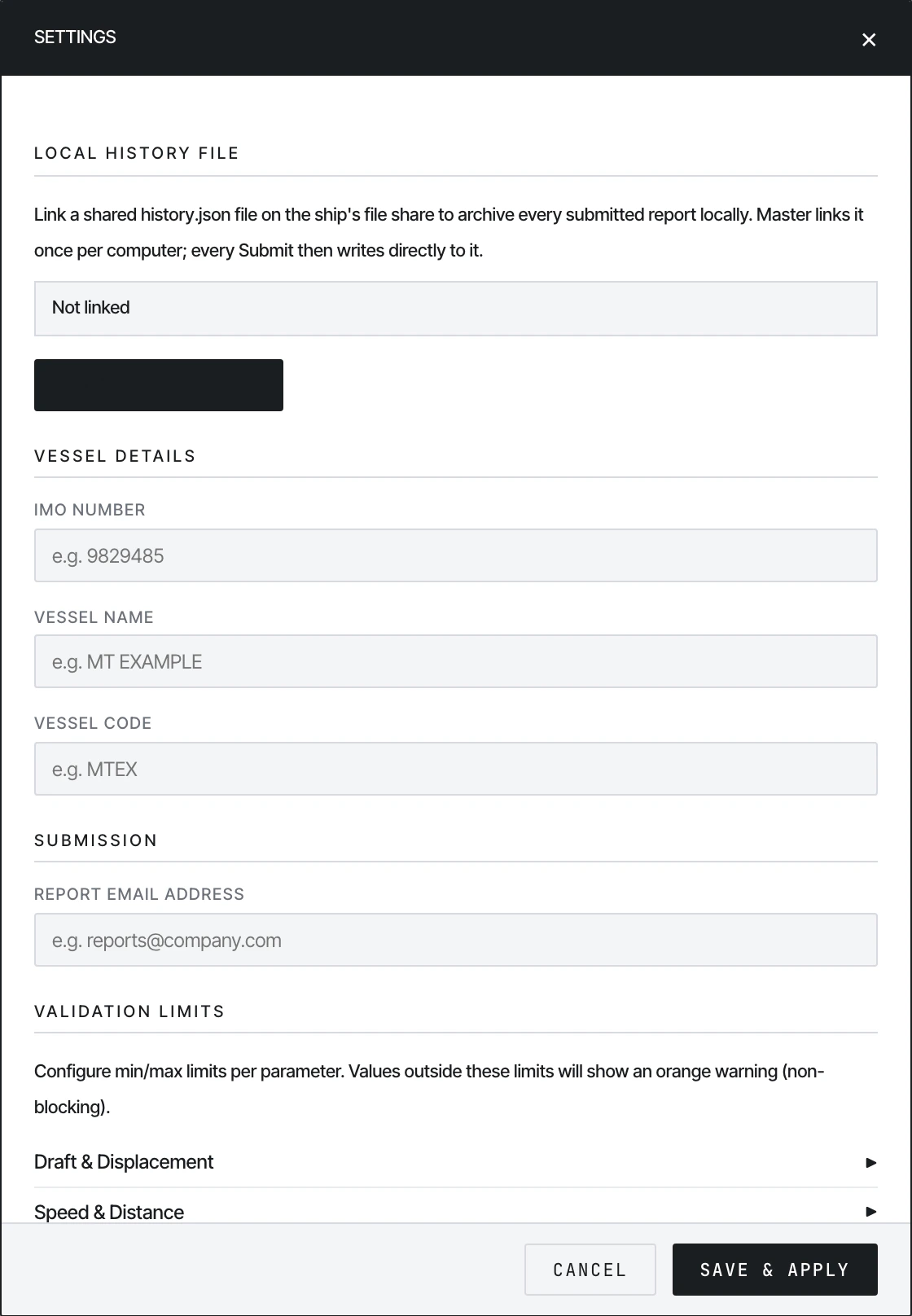 **Skip the Link button on the office machine** — linking is a per-vessel-computer action (Part 2). The office only sets vessel/limit data here.
### 1.3 Vessel identifiers
Fill these once per vessel:
| Field | Meaning |
| ---------------------- | -------------------------------------------------------- |
| `IMO Number` | Vessel's IMO. Required. |
| `Vessel Name` | Full name (will appear in the email subject) |
| `Vessel Code` | Short code used in archive filenames (4–6 chars typical) |
| `Report Email Address` | Shore inbox the form's `mailto:` should target |
### 1.4 Validation limits
Below the vessel section is **Validation Limits**, organised into collapsible groups.
**Skip the Link button on the office machine** — linking is a per-vessel-computer action (Part 2). The office only sets vessel/limit data here.
### 1.3 Vessel identifiers
Fill these once per vessel:
| Field | Meaning |
| ---------------------- | -------------------------------------------------------- |
| `IMO Number` | Vessel's IMO. Required. |
| `Vessel Name` | Full name (will appear in the email subject) |
| `Vessel Code` | Short code used in archive filenames (4–6 chars typical) |
| `Report Email Address` | Shore inbox the form's `mailto:` should target |
### 1.4 Validation limits
Below the vessel section is **Validation Limits**, organised into collapsible groups.
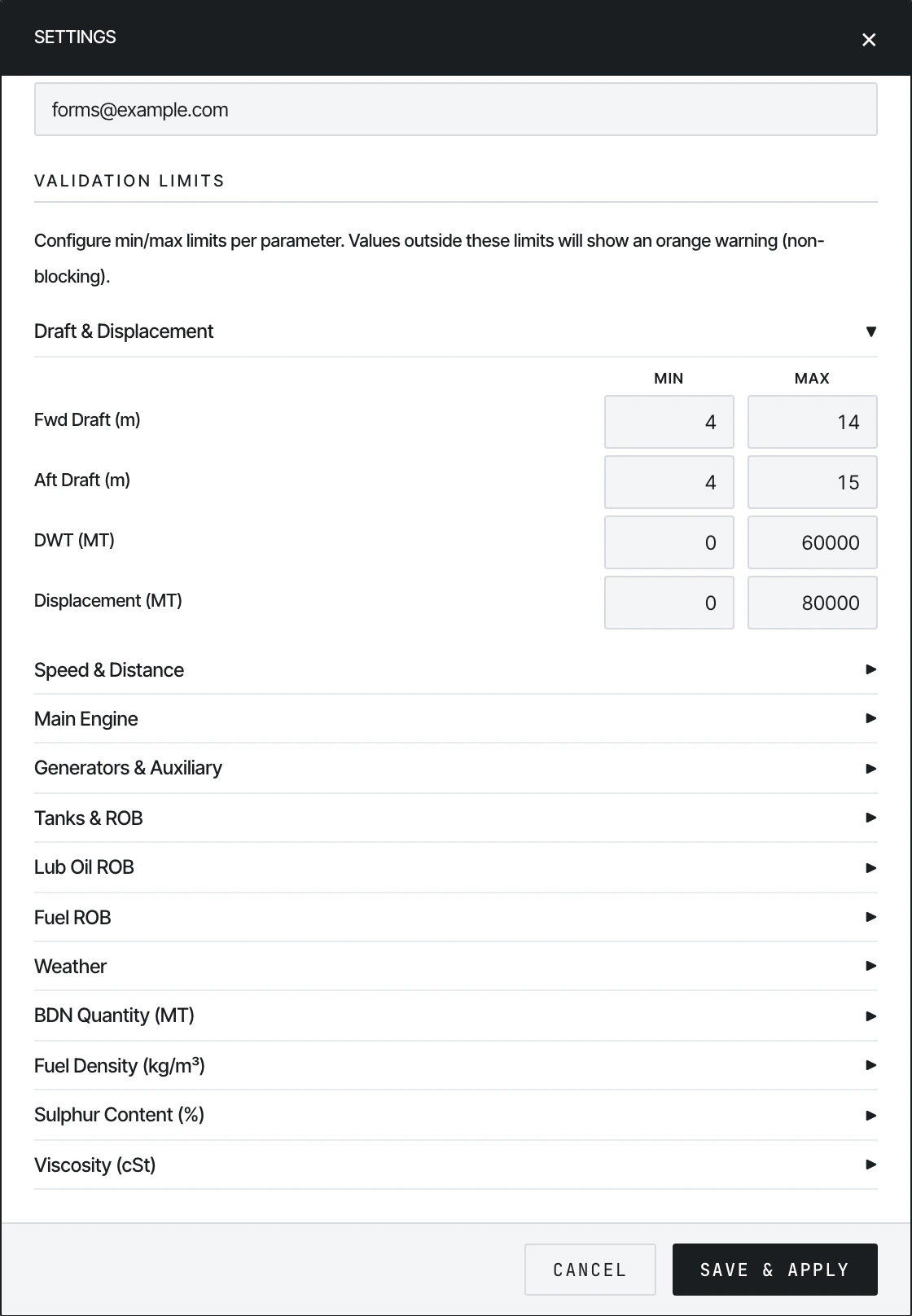 Per parameter, type Min and/or Max. Both are optional — leave blank to disable that bound. Values outside the configured range trigger an **orange non-blocking warning** on the report form. See [Validation](/form/validation) for the full list of configurable groups.
### 1.5 Export Configured HTML
Click the green **⬇ Export Configured HTML** button in the modal footer (next to Cancel and Save & Apply).
This does everything in one click:
* Saves the settings to the shore browser's localStorage
* Embeds all vessel details and validation limits directly into the HTML file source
* Downloads `{VesselName}-Metaweave-Reports.html`
**Why not just Save & Apply?** Browser localStorage is per-machine and per-file-path — it does not travel with the file. **Export Configured HTML** bakes the settings into the HTML itself so the vessel crew see the correct vessel name, IMO, and limits the moment they open the file, on any computer, without typing anything.
**Configuring for multiple vessels:** the base form on the shore computer is untouched after an export. To prepare a form for a second vessel, open Settings again, enter the new vessel's details, and click **Export Configured HTML** again. A separate `{Vessel2Name}-Metaweave-Reports.html` downloads. Each exported file is fully independent.
### 1.6 Send the bundle to the vessel
Email or USB three files together:
1. `{VesselName}-Metaweave-Reports.html` — the configured form for this vessel
2. `Metaweave-History-Viewer.html` — the read-only history browser (one copy, never modified)
3. `history.json` — empty (`[]`) on day 1, then it grows on the vessel
Tell the vessel to keep all three files in the **same folder** (e.g. `\\ship-nas\Performance\Metaweave\`) and never rename them.
## Part 2 — Vessel: one-time setup per computer
The first time the Master opens the form on a new computer, the local archive is **not yet linked**. He needs to point the form at the shared `history.json`.
### 2.1 Open Settings → Link history.json
Click the gear icon to open Settings. The **Local History File** section is at the top.
Click **`Link history.json`**.
A standard browser file picker opens. Navigate to the shared drive folder and pick `history.json`. Chrome shows a permission prompt — click **Allow**, granting **read+write** access for this file.
The status line should now read `Linked: history.json · 0 rows · last write —` in black. The Link button is replaced by **Re-link** and **Unlink** buttons.
The form remembers this link in the browser's IndexedDB. The Master only re-links if he clears browser data, switches browsers, or moves the file.
### 2.2 Per-session Allow dialog
Every time the form is reopened in a new browser session, Chrome asks **"Allow this site to re-access `history.json`?"** before the first archive write. Click **Allow** once per session and every Submit thereafter writes silently.
### 2.3 If multiple officers share the file
Each daily report copy still gets passed serially around the ship (2/O fills nav → CE fills consumption → Master reviews → Master submits). Only the **Master's machine** needs `history.json` linked, because only the Master clicks Submit. The other officers' machines don't need to touch the history file.
## Part 3 — What happens on every Submit
Once linked, the archive is automatic. On Submit, the form:
1. Validates and encrypts as usual (see [Submitting](/form/submitting))
2. Computes a **stable row ID**: `{vesselImo}|{reportType}|{reportDatetimeUtc}` — e.g. `9840157|NOON|2026-04-13T12:00:00+00:00`
3. Reads the current `history.json` array
4. **Upserts** the row by ID:
* **Insert** if no existing row has the same ID
* **Update** (replace in-place) if an ID match is found
5. Writes the new array back to disk
6. Shows a toast confirming the write
Per parameter, type Min and/or Max. Both are optional — leave blank to disable that bound. Values outside the configured range trigger an **orange non-blocking warning** on the report form. See [Validation](/form/validation) for the full list of configurable groups.
### 1.5 Export Configured HTML
Click the green **⬇ Export Configured HTML** button in the modal footer (next to Cancel and Save & Apply).
This does everything in one click:
* Saves the settings to the shore browser's localStorage
* Embeds all vessel details and validation limits directly into the HTML file source
* Downloads `{VesselName}-Metaweave-Reports.html`
**Why not just Save & Apply?** Browser localStorage is per-machine and per-file-path — it does not travel with the file. **Export Configured HTML** bakes the settings into the HTML itself so the vessel crew see the correct vessel name, IMO, and limits the moment they open the file, on any computer, without typing anything.
**Configuring for multiple vessels:** the base form on the shore computer is untouched after an export. To prepare a form for a second vessel, open Settings again, enter the new vessel's details, and click **Export Configured HTML** again. A separate `{Vessel2Name}-Metaweave-Reports.html` downloads. Each exported file is fully independent.
### 1.6 Send the bundle to the vessel
Email or USB three files together:
1. `{VesselName}-Metaweave-Reports.html` — the configured form for this vessel
2. `Metaweave-History-Viewer.html` — the read-only history browser (one copy, never modified)
3. `history.json` — empty (`[]`) on day 1, then it grows on the vessel
Tell the vessel to keep all three files in the **same folder** (e.g. `\\ship-nas\Performance\Metaweave\`) and never rename them.
## Part 2 — Vessel: one-time setup per computer
The first time the Master opens the form on a new computer, the local archive is **not yet linked**. He needs to point the form at the shared `history.json`.
### 2.1 Open Settings → Link history.json
Click the gear icon to open Settings. The **Local History File** section is at the top.
Click **`Link history.json`**.
A standard browser file picker opens. Navigate to the shared drive folder and pick `history.json`. Chrome shows a permission prompt — click **Allow**, granting **read+write** access for this file.
The status line should now read `Linked: history.json · 0 rows · last write —` in black. The Link button is replaced by **Re-link** and **Unlink** buttons.
The form remembers this link in the browser's IndexedDB. The Master only re-links if he clears browser data, switches browsers, or moves the file.
### 2.2 Per-session Allow dialog
Every time the form is reopened in a new browser session, Chrome asks **"Allow this site to re-access `history.json`?"** before the first archive write. Click **Allow** once per session and every Submit thereafter writes silently.
### 2.3 If multiple officers share the file
Each daily report copy still gets passed serially around the ship (2/O fills nav → CE fills consumption → Master reviews → Master submits). Only the **Master's machine** needs `history.json` linked, because only the Master clicks Submit. The other officers' machines don't need to touch the history file.
## Part 3 — What happens on every Submit
Once linked, the archive is automatic. On Submit, the form:
1. Validates and encrypts as usual (see [Submitting](/form/submitting))
2. Computes a **stable row ID**: `{vesselImo}|{reportType}|{reportDatetimeUtc}` — e.g. `9840157|NOON|2026-04-13T12:00:00+00:00`
3. Reads the current `history.json` array
4. **Upserts** the row by ID:
* **Insert** if no existing row has the same ID
* **Update** (replace in-place) if an ID match is found
5. Writes the new array back to disk
6. Shows a toast confirming the write
 ### Stable IDs let you re-submit safely
The ID is deterministic — same vessel + same report type + same report timestamp = same ID. So if the Master re-files a corrected Noon for the same date/time, the existing row gets **replaced** in `history.json` (and replaced in PostgreSQL by the pipeline, by the same logic).
### When the archive write fails
If the write fails (file moved, permission revoked, disk full), a modal appears with three buttons:
### Stable IDs let you re-submit safely
The ID is deterministic — same vessel + same report type + same report timestamp = same ID. So if the Master re-files a corrected Noon for the same date/time, the existing row gets **replaced** in `history.json` (and replaced in PostgreSQL by the pipeline, by the same logic).
### When the archive write fails
If the write fails (file moved, permission revoked, disk full), a modal appears with three buttons:
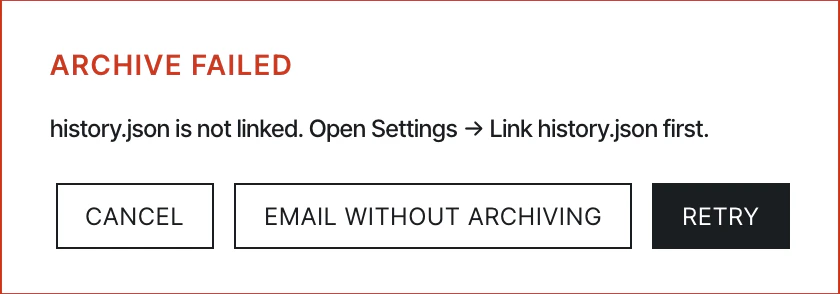 * **Retry** — re-attempts the write
* **Skip** — proceeds with the email submission, but the row **isn't archived locally** (you'll need to fix the link and resubmit if you want it in `history.json`)
* **Cancel** — abandons the whole submission, including the email
The email and the local archive are separate paths — neither blocks the other. The pipeline still ingests from the email regardless of the archive state.
## Part 4 — What's in history.json
The file is a **JSON array** of submission records. Each record has 10 top-level fields:
```json theme={"system"}
{
"id": "9840157|NOON|2026-04-13T12:00:00+00:00",
"formVersion": "mw-2026-04-14",
"reportType": "NOON",
"reportDatetimeUtc": "2026-04-13T12:00:00+00:00",
"submittedAt": "2026-04-13T12:30:00Z",
"submittedBy": "Master",
"vesselImo": 9840157,
"vesselName": "METAWEAVE TEST",
"voyageNo": "V31",
"payload": { /* 27–85+ payload fields, depending on report type */ }
}
```
See [Data format](/history/data-format) for the full schema and per-report-type payload contents.
## Part 5 — Troubleshooting
| Problem | Fix |
| --------------------------------------------------- | ------------------------------------------------------------------------------------------------ |
| Status reads "Not linked" but I linked it yesterday | Browser cleared site data. Re-link. |
| Per-session Allow prompt every reopen | Expected — Chrome asks once per session. |
| "Could not write history.json" | The file moved or the shared drive isn't mounted. Ensure the folder is reachable, then Re-link. |
| Master uses Firefox/Safari | Switch to Chrome or Edge — FSA is required. |
| Archive shows N rows but viewer shows fewer | Refresh viewer (Re-link). The viewer caches the file at link-time, not real-time. |
| Multiple Masters on rotating duty | They share the same `history.json`. Each just needs to Allow re-access in their browser session. |
## Bootstrapping history.json from existing data
If a vessel has months of historical reports already (Excel exports, legacy emails), you can build an initial `history.json` so the viewer has data on day 1.
The pipeline ships two helper scripts:
* **`excel_to_history.py`** — converts a vendor Excel of voyage reports to `history.json`
* **`generate_metaweave_test_history.py`** — generates a synthetic 12-month Aframax history for testing
See [Bootstrap scripts](/history/bootstrap-scripts) for usage.
## See also
* [Overview](/history/overview) — what the viewer is
* [Viewing past reports](/history/viewing) — day-to-day viewer usage
* [Data format](/history/data-format) — the JSON schema
* [Bootstrap scripts](/history/bootstrap-scripts) — bootstrapping `history.json` from Excel or synthetic data
* **Retry** — re-attempts the write
* **Skip** — proceeds with the email submission, but the row **isn't archived locally** (you'll need to fix the link and resubmit if you want it in `history.json`)
* **Cancel** — abandons the whole submission, including the email
The email and the local archive are separate paths — neither blocks the other. The pipeline still ingests from the email regardless of the archive state.
## Part 4 — What's in history.json
The file is a **JSON array** of submission records. Each record has 10 top-level fields:
```json theme={"system"}
{
"id": "9840157|NOON|2026-04-13T12:00:00+00:00",
"formVersion": "mw-2026-04-14",
"reportType": "NOON",
"reportDatetimeUtc": "2026-04-13T12:00:00+00:00",
"submittedAt": "2026-04-13T12:30:00Z",
"submittedBy": "Master",
"vesselImo": 9840157,
"vesselName": "METAWEAVE TEST",
"voyageNo": "V31",
"payload": { /* 27–85+ payload fields, depending on report type */ }
}
```
See [Data format](/history/data-format) for the full schema and per-report-type payload contents.
## Part 5 — Troubleshooting
| Problem | Fix |
| --------------------------------------------------- | ------------------------------------------------------------------------------------------------ |
| Status reads "Not linked" but I linked it yesterday | Browser cleared site data. Re-link. |
| Per-session Allow prompt every reopen | Expected — Chrome asks once per session. |
| "Could not write history.json" | The file moved or the shared drive isn't mounted. Ensure the folder is reachable, then Re-link. |
| Master uses Firefox/Safari | Switch to Chrome or Edge — FSA is required. |
| Archive shows N rows but viewer shows fewer | Refresh viewer (Re-link). The viewer caches the file at link-time, not real-time. |
| Multiple Masters on rotating duty | They share the same `history.json`. Each just needs to Allow re-access in their browser session. |
## Bootstrapping history.json from existing data
If a vessel has months of historical reports already (Excel exports, legacy emails), you can build an initial `history.json` so the viewer has data on day 1.
The pipeline ships two helper scripts:
* **`excel_to_history.py`** — converts a vendor Excel of voyage reports to `history.json`
* **`generate_metaweave_test_history.py`** — generates a synthetic 12-month Aframax history for testing
See [Bootstrap scripts](/history/bootstrap-scripts) for usage.
## See also
* [Overview](/history/overview) — what the viewer is
* [Viewing past reports](/history/viewing) — day-to-day viewer usage
* [Data format](/history/data-format) — the JSON schema
* [Bootstrap scripts](/history/bootstrap-scripts) — bootstrapping `history.json` from Excel or synthetic data