> ## Documentation Index
> Fetch the complete documentation index at: https://docs.appliedaifoundation.org/llms.txt
> Use this file to discover all available pages before exploring further.
# Data upload
> Drag-drop Excel consumption logs with preview, validation, and duplicate detection.
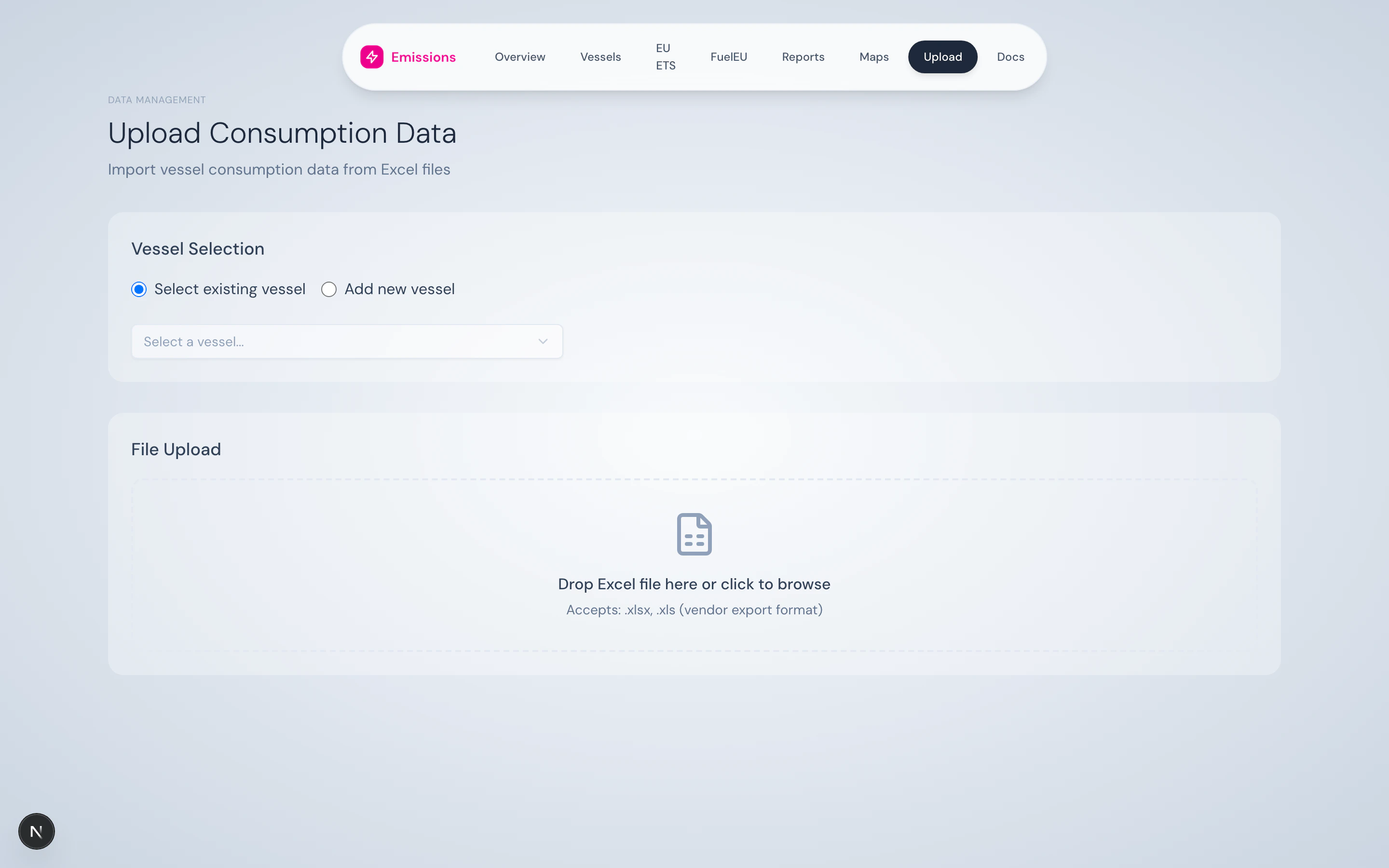
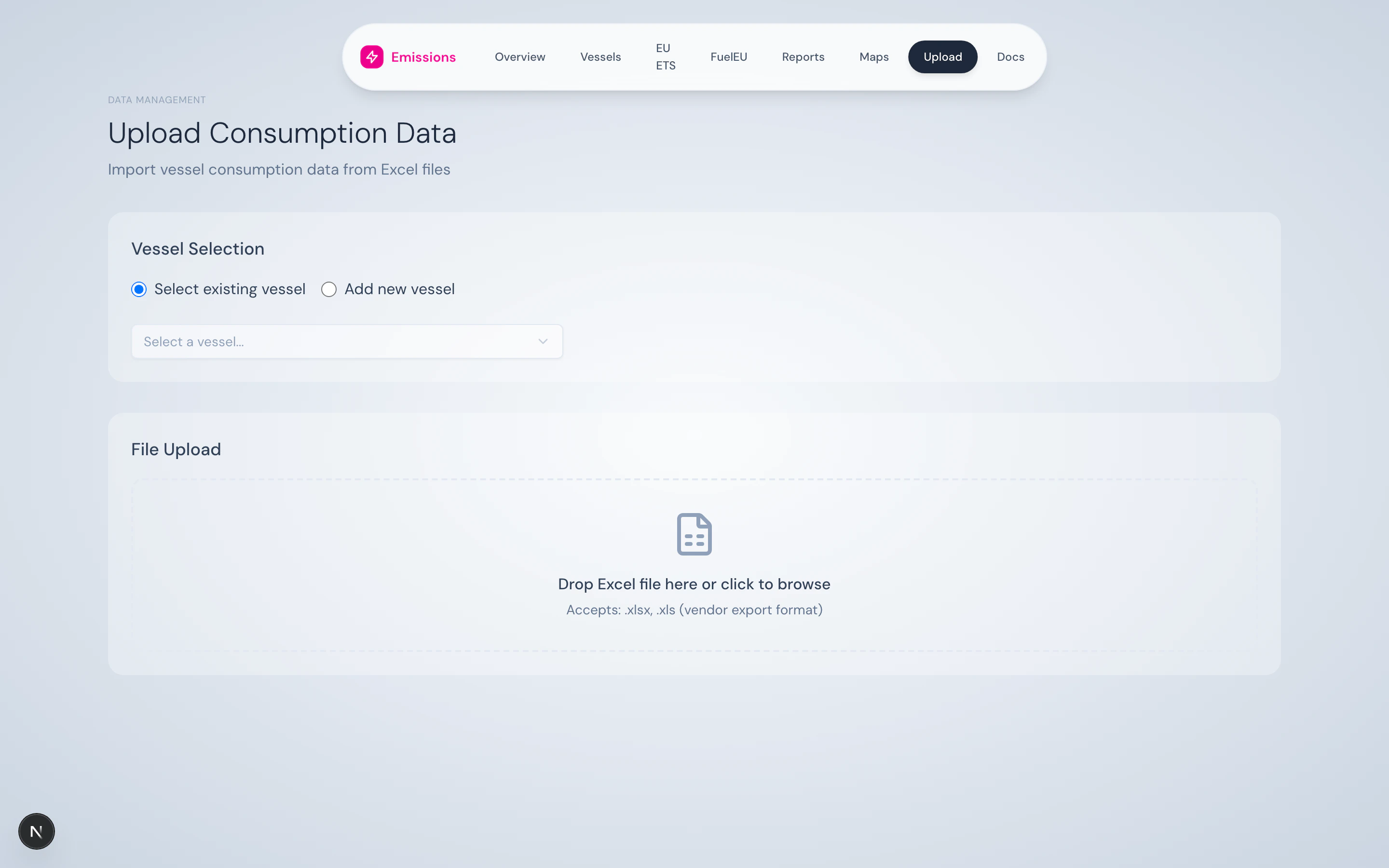
The Upload page is how data gets into the system. Drag an Excel file in; the platform parses it, shows you a preview, flags duplicates, and inserts only what's new.
 ## How it works
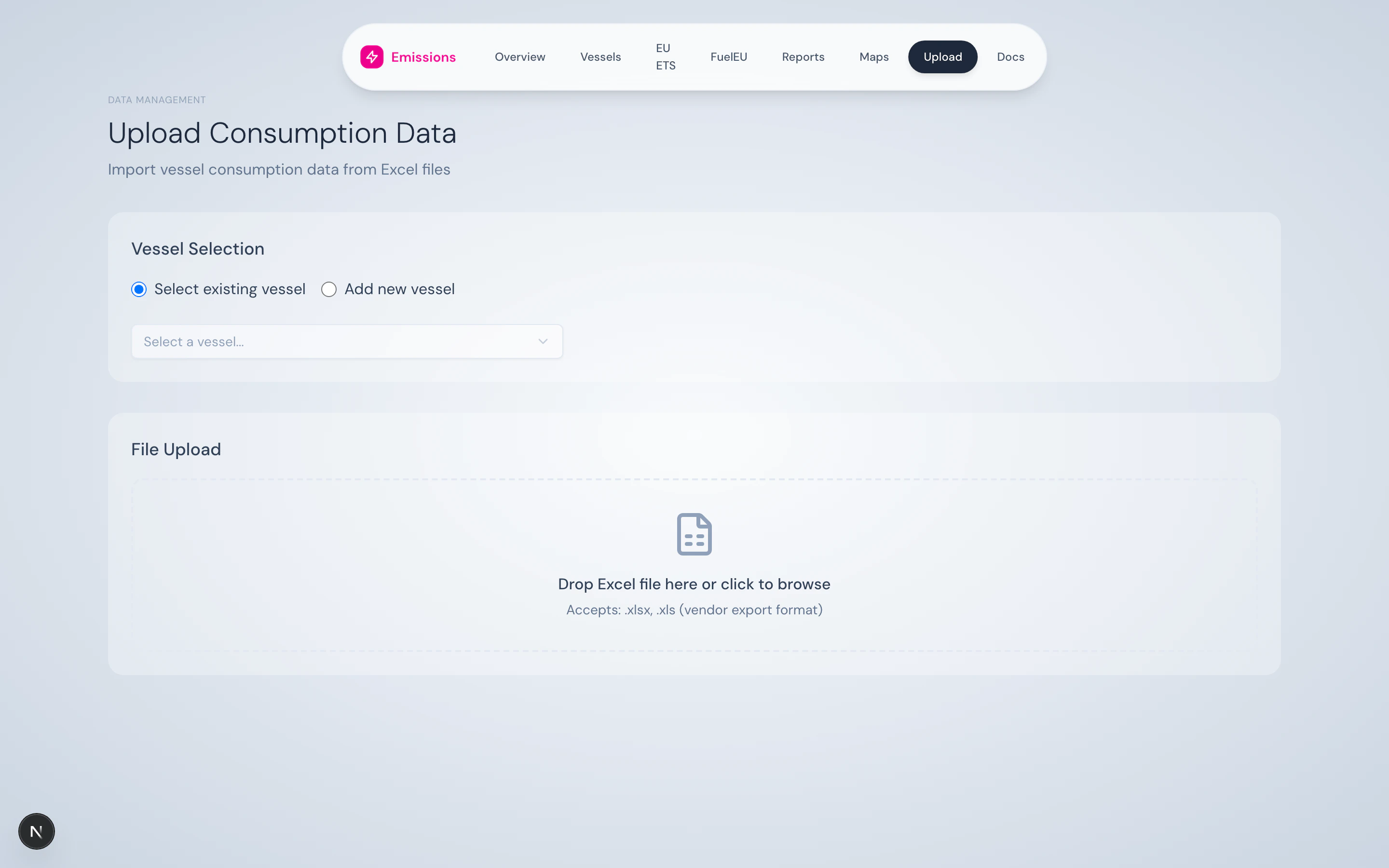 Two modes:
* **Existing vessel** — pick from the fleet dropdown. The dropdown shows vessel type and DWT for confirmation.
* **New vessel** — enter IMO (7 digits), name, DWT. The vessel is registered before the upload runs.
See [Vessel onboarding](/data/vessel-onboarding) for the full new-vessel flow.
Two modes:
* **Existing vessel** — pick from the fleet dropdown. The dropdown shows vessel type and DWT for confirmation.
* **New vessel** — enter IMO (7 digits), name, DWT. The vessel is registered before the upload runs.
See [Vessel onboarding](/data/vessel-onboarding) for the full new-vessel flow.
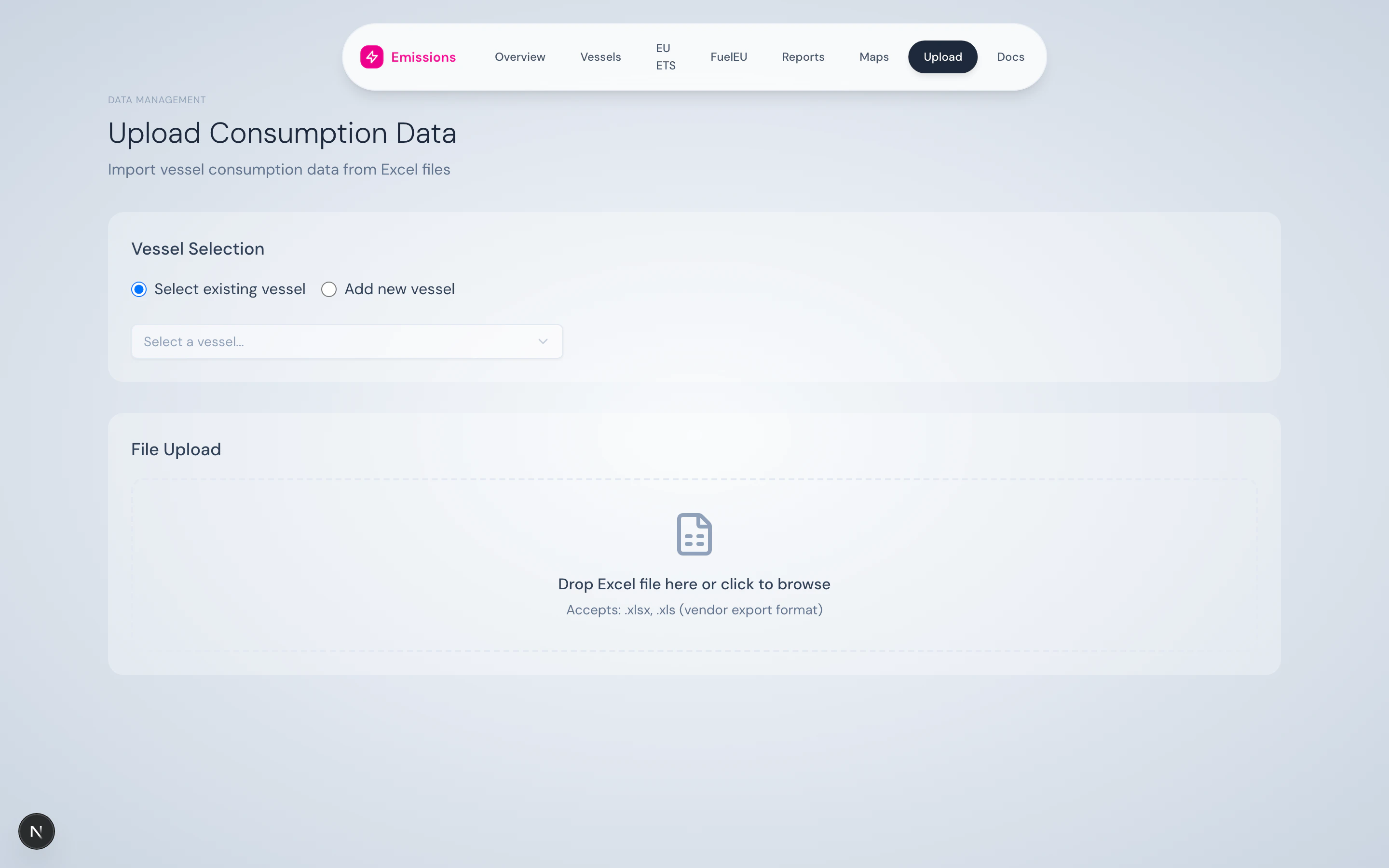 Either drag an `.xlsx` or `.xls` file onto the dashed zone or click to open a file picker. The platform reads the filename and size; nothing is uploaded yet.
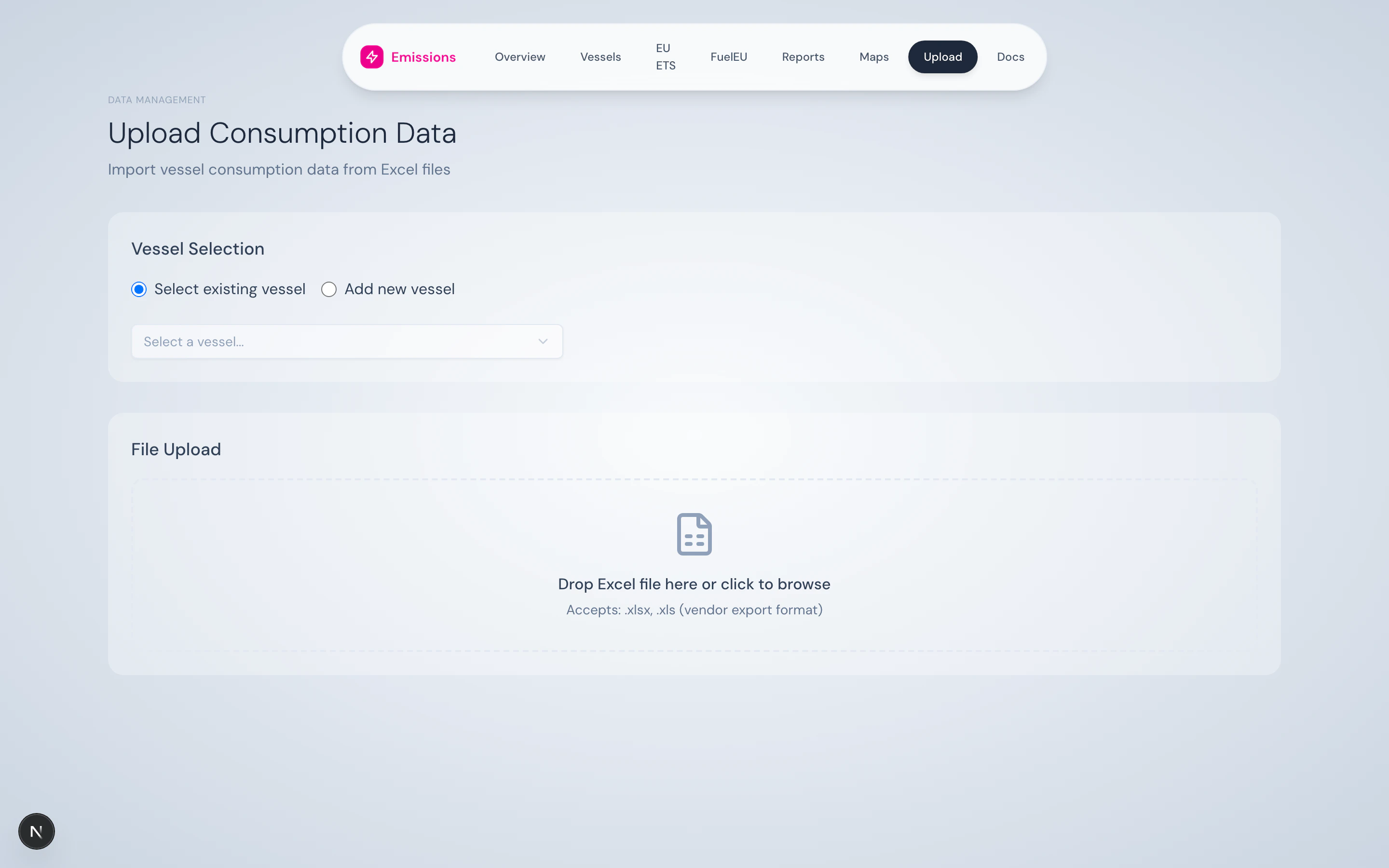 Click **Parse File**. The platform sends the file to `/api/upload/consumption?action=preview` and shows you:
* Column count and total rows
* Date range covered (start → end)
* Valid rows ready to insert
* **Duplicate detection** — rows that already exist (by IMO + timestamp) and will be skipped
* The first 10 rows of data, so you can sanity-check column mapping
See [Excel upload format](/data/excel-upload-format) for the expected columns.
Once the preview looks right, click **Upload N Rows**. The platform inserts the new rows into Postgres, leaving duplicates alone.
Click **Parse File**. The platform sends the file to `/api/upload/consumption?action=preview` and shows you:
* Column count and total rows
* Date range covered (start → end)
* Valid rows ready to insert
* **Duplicate detection** — rows that already exist (by IMO + timestamp) and will be skipped
* The first 10 rows of data, so you can sanity-check column mapping
See [Excel upload format](/data/excel-upload-format) for the expected columns.
Once the preview looks right, click **Upload N Rows**. The platform inserts the new rows into Postgres, leaving duplicates alone.
 A green banner reports rows inserted vs. duplicates skipped. A collapsible debug panel exposes deeper info — total rows processed, valid timestamps, invalid timestamps, etc. — useful when something looks off.
Click **Upload Another File** to reset and continue.
## Validation rules
The parser enforces:
* File must be `.xlsx` or `.xls` and under 50 MB
* A `timestampUtc` column is required (no row without a valid timestamp is inserted)
* Timestamps are parsed as **UTC** — Excel local-time serials are converted
* Duplicate detection key: `imo` + `timestampUtc`
If anything fails, the preview surfaces the exact reason — bad date format, missing column, etc.
## Source
UI in `src/app/upload/`. Server-side parsing in `src/lib/utils/excelParser.ts`. API route at `src/app/api/upload/consumption/route.ts`.
A green banner reports rows inserted vs. duplicates skipped. A collapsible debug panel exposes deeper info — total rows processed, valid timestamps, invalid timestamps, etc. — useful when something looks off.
Click **Upload Another File** to reset and continue.
## Validation rules
The parser enforces:
* File must be `.xlsx` or `.xls` and under 50 MB
* A `timestampUtc` column is required (no row without a valid timestamp is inserted)
* Timestamps are parsed as **UTC** — Excel local-time serials are converted
* Duplicate detection key: `imo` + `timestampUtc`
If anything fails, the preview surfaces the exact reason — bad date format, missing column, etc.
## Source
UI in `src/app/upload/`. Server-side parsing in `src/lib/utils/excelParser.ts`. API route at `src/app/api/upload/consumption/route.ts`.